Clone and build
Both apps live in the same examples-hub repository. Clone it once and pick the platform you want to run.
git clone https://github.com/silence-laboratories/examples-hub.git
cd examples-hub/silent-shard-sdk
The Trio apps are under with-android/trio-initiator and with-ios/trio-initiator.
- Android
- iOS / macOS
GitHub Packages auth
The native MPC libraries are pulled from GitHub Packages, which requires a personal access token with the read:packages scope. The full token-creation walk-through is in the Kotlin installation guide.
The example app uses the advanced credential approach from the installation guide — a getCredential() helper in settings.gradle.kts that reads from local.properties, Gradle properties, or environment variables. Create silent-shard-sdk/with-android/trio-initiator/local.properties (it's gitignored) and add:
gpr.user=YOUR_GITHUB_USERNAME
gpr.token=ghp_yourTokenHere
If you'd rather not have credentials inside the example checkout, the same keys work in ~/.gradle/gradle.properties and apply to every Gradle project on your machine.
A 401 from maven.pkg.github.com during the first sync usually means the token is missing or has the wrong scope. A 403 usually means your account doesn't have access to the silentshard-artifacts repo — contact [email protected].
Build and run
Open silent-shard-sdk/with-android/trio-initiator in Android Studio, wait for the Gradle sync to finish, then run the app on a device or emulator.
GitHub authentication for SPM
Swift Package Manager pulls the SDK XCFramework from a private GitHub repo. Xcode authenticates against the GitHub account you've added under Settings → Accounts. The full walk-through (including how to add the account and create a token) is in the Swift Quick Start.
If SPM package resolution fails with an authentication error, you're missing the GitHub account in Xcode or the cached token is expired.
Open and run
Open SilentShardWalletTrio.xcodeproj in Xcode, wait for SPM to resolve packages, then build and run.
Run on a real device, the iOS Simulator, or the macOS target ("My Mac" in the destination picker).
What you should see on first launch
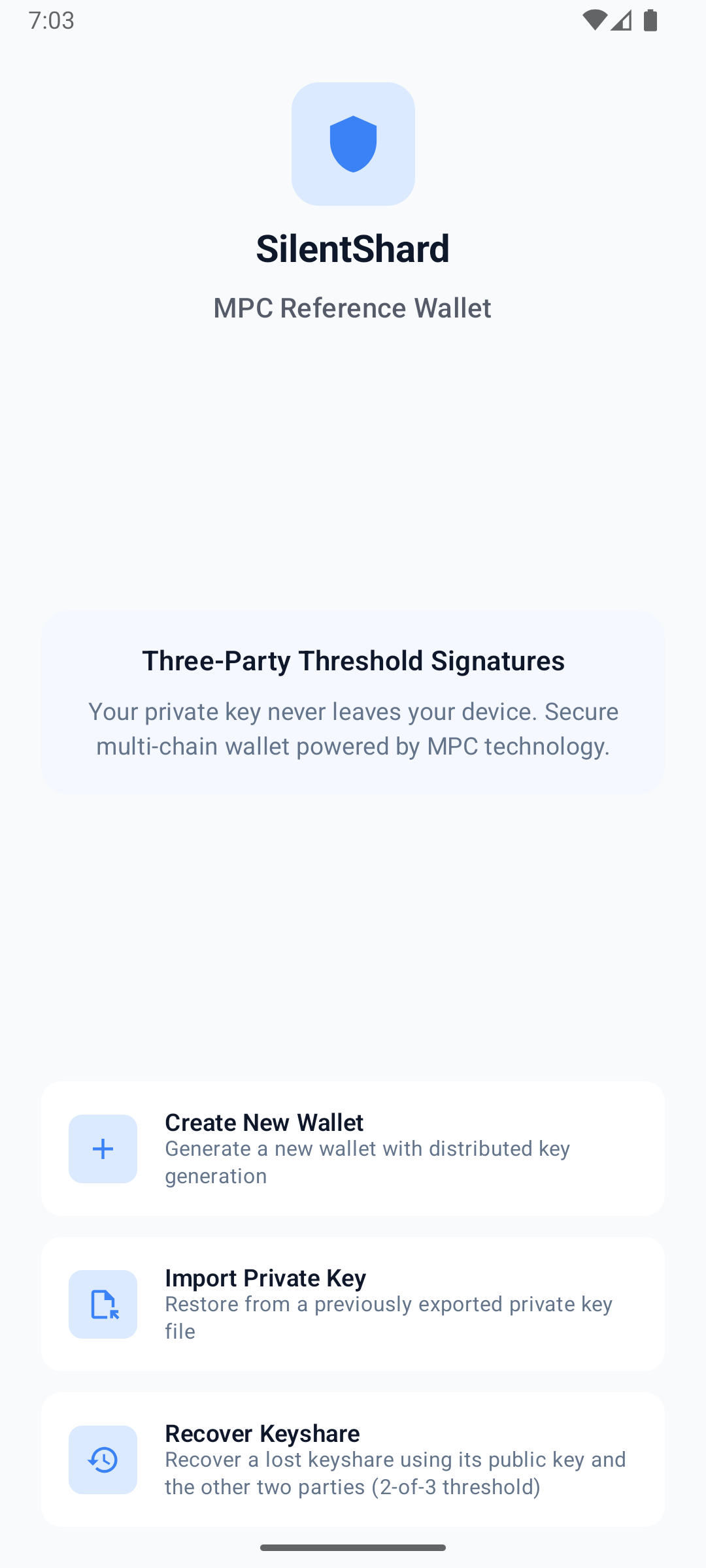
A welcome screen with three actions: Create New Wallet, Import Private Key, and Recover Keyshare. Create one wallet of each type (ECDSA → Ethereum, EdDSA → Solana) — under the hood each one runs a 3-party MPC keygen against the trio demo servers. Once both are created, the dashboard shows two wallet cards with addresses you can copy and fund from the in-app faucet, plus a Pre-Signature screen for the trio-only fast-signing flow.
If keygen hangs or fails, jump straight to Server config — the demo server is the most common point of friction.