Installation
Prerequisites
- Node.js (LTS) and a package manager (npm or Yarn).
- An NPM token from Silence Laboratories to install the SDK from our private registry. Don't have one? Email [email protected].
- A running iOS Simulator (Xcode) or Android emulator (Android Studio) to launch the app on.
Configure Your Package Manager
Configure your package manager with a private token provided by us to access the private registry.
Use a consistent install workflow throughout (either npm install or yarn add). Note that .npmrc configuration applies to both npm and Yarn v1, while Yarn v2+ uses .yarnrc.yml.
- yarn v2
- yarn v1 / npm
- Create a
.yarnrc.ymlfile in the root of your project and add the following line:
npmScopes:
  "silencelaboratories":
    npmAlwaysAuth: true
    npmRegistryServer: "https://registry.npmjs.org"
    npmAuthToken: ${NPM_TOKEN}
- Create a
.npmrcfile in the root of your project and add the following line:
//registry.npmjs.org/:_authToken=${NPM_TOKEN}
- Add the npm token as an environment variable, e.g., in a terminal session run:
export NPM_TOKEN=your-npm-token
Install the core library
- npm
- yarn
npm install @silencelaboratories/silent-shard-sdk
yarn add @silencelaboratories/silent-shard-sdk
Install the native SDK(s) for your wallet types
You only need the native SDKs for the wallet families your app actually supports — installing extras only adds bundle size.
| Wallet family | Algorithm | Native package |
|---|---|---|
| EVM, Bitcoin, etc. | ECDSA | @silencelaboratories/dkls-sdk |
| Solana, etc. | EdDSA | @silencelaboratories/schnorr-sdk |
| Post-quantum wallets | MLDSA | @silencelaboratories/mldsa-sdk |
- ECDSA
- EdDSA
- MLDSA
- npm
- yarn
npm install @silencelaboratories/dkls-sdk
yarn add @silencelaboratories/dkls-sdk
- npm
- yarn
npm install @silencelaboratories/schnorr-sdk
yarn add @silencelaboratories/schnorr-sdk
@silencelaboratories/mldsa-sdk uses JSI and C++ Nitro Modules instead of the "old" Bridge.
- npm
- yarn
npm install @silencelaboratories/mldsa-sdk react-native-nitro-modules
yarn add @silencelaboratories/mldsa-sdk react-native-nitro-modules
- Android
- iOS
- Expo
No additional steps are required.
To run on the iOS platform, install pods before running the application:
cd ios && pod install
For the current version of libraries, doesn't support Expo Go projects.
However, Expo users can use the Expo prebuild to extract native modules. Then auto-link should handle the linking of the native dependencies.
In the root of your project, run:
npx expo prebuild
After the prebuild is done, you can run the project on your desired platform:
npx expo run:android
or
npx expo run:ios
Prerequisites
- The Flutter SDK with Dart, and a working Flutter toolchain.
- A Dart pub token from Silence Laboratories for the private registry (
dart-pkg.silencelaboratories.com). Don't have one? Email [email protected]. - A running iOS Simulator (Xcode) or Android emulator (Android Studio) to launch the app.
Setup the Mobile SDK
Create a new Flutter project, or open your existing one:
flutter create silent_mpc
Configure your dart pub client
The SDK is published to a private registry (dart-pkg.silencelaboratories.com). Authenticate dart pub with the token provided by Silence Laboratories:
dart pub token add https://dart-pkg.silencelaboratories.com
# Paste your token when prompted:
Enter secret token: <silence-dart-token>
Add the dependency
Add silent_shard_sdk from the private registry. From the root of your Flutter project, run:
dart pub add 'silent_shard_sdk:{"hosted":"https://dart-pkg.silencelaboratories.com"}'
This adds silent_shard_sdk to your pubspec.yaml and installs it.
Verify the installation
Import the SDK in your Dart code to confirm everything is set up:
import 'package:silent_shard_sdk/silent_shard_sdk.dart' as sdk;
You're ready to go. Head to the Quick Start to create a session and run your first MPC operation.
Prerequisites
- Android Studio with a recent Android SDK and JDK.
- Access to the Silence Laboratories Android SDK repository (credentials from our team). Don't have access? Email [email protected].
- A running Android emulator or physical device to launch the app on.
Setup the Mobile SDK
Step 1: Create access token for the repository and package
- Get access to the repository https://github.com/silence-laboratories/silent-shard-artifacts from the Silence Laboratories team.
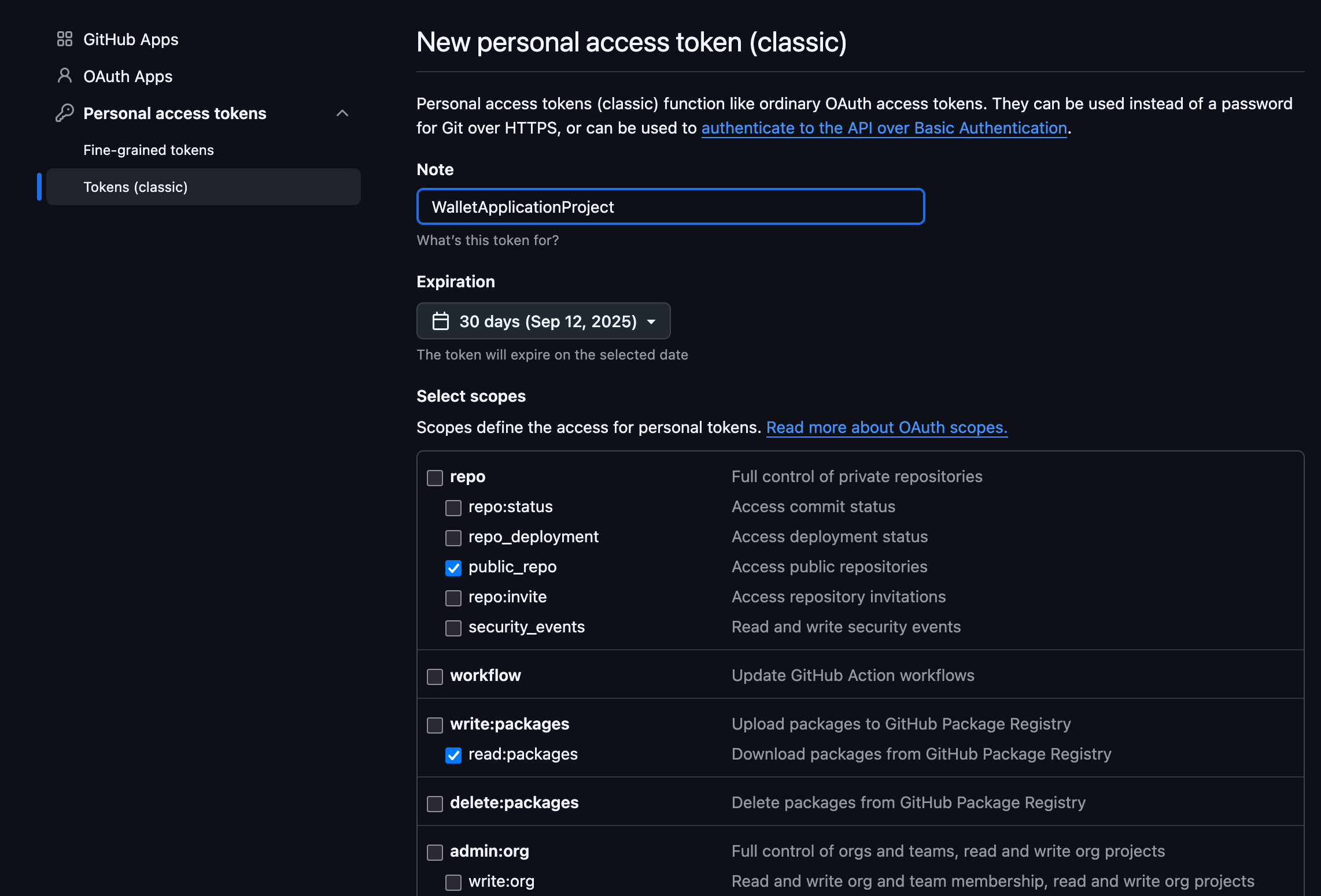
- Create a personal access token at https://github.com/settings/tokens with the following scopes checked to access the repository, and its associated GithubPackages through gradle.
- Under
repo→public_repo - Under
write:packages→read:packagesWe can leavewrite:packagesuntouched/unchecked as we only need read access
- Under
- It will end up looking like this: Two items checked, everything else unchecked.
Step 2: Configure settings.gradle.kts
Add the following maven repo under dependencyResolutionManagement → repositories:
dependencyResolutionManagement {
    // ... existing config ...
    repositories {
        // ... existing repos ...
        maven {
            url = uri("https://maven.pkg.github.com/silence-laboratories/silent-shard-artifacts")
            credentials {
                username = "github_username"
                password = "token_we_just_created"
            }
        }
    }
}
- Replace
github_usernamewith your GitHub username. - Replace
token_we_just_createdwith the token you created.
Advanced: Keep credentials out of source control
Instead of hardcoding your username and token, store them in local.properties (gitignored by default):
gpr.user=your_github_username
gpr.token=ghp_your_personal_access_token
Then add a helper in settings.gradle.kts:
val localPropertiesFile = file("local.properties")
val localProperties = java.util.Properties()
if (localPropertiesFile.exists()) {
    localPropertiesFile.inputStream().use { localProperties.load(it) }
}

fun getCredential(key: String): String {
    return localProperties.getProperty(key)
        ?: providers.gradleProperty(key).orNull
        ?: System.getenv("ORG_GRADLE_PROJECT_$key")
        ?: ""
}
Use it in the maven block:
maven {
    url = uri("https://maven.pkg.github.com/silence-laboratories/silent-shard-artifacts")
    credentials {
        username = getCredential("gpr.user")
        password = getCredential("gpr.token")
    }
}
This is the pattern used by the reference example apps.
Step 4: Configure app-level build.gradle.kts
Add the dependency:
implementation("com.silencelaboratories.silentshard:duo-initiator:1.0.0")
Your final dependencies block will look like this:
dependencies {
  implementation("com.silencelaboratories.silentshard:duo-initiator:1.0.0")
  // Your other dependencies
}
Step 5: Gradle Sync
Sync Gradle with project files and that's it.
Prerequisites
- Xcode (a recent version) with Swift.
- Access to the Silence Laboratories iOS SDK (Swift package, credentials from our team). Don't have access? Email [email protected].
- A running iOS Simulator or physical device to launch the app on.
Setup the Mobile SDK
Step 1: Setup Xcode project
- Install Xcode (latest stable version recommended).
- Create a new Xcode project if you haven't already.
Step 2: Create package URL
- Get access to the repository https://github.com/silence-laboratories/silent-shard-artifacts from the Silence Laboratories team.
- Get the package URL:
- Add your GitHub account in Xcode. Skip this if you already have it. You can add it by following these steps (only until it adds your GitHub account).
- The final package URL is:
https://github.com/silence-laboratories/silent-shard-artifacts.
Step 3: Open the Package Dependencies window
- In Xcode, open the Project Navigator.
- Select the project file (the root item in the navigator).
- In the Project Editor, select your project under the Project section.
- Navigate to the Package Dependencies tab.

- Click the + icon at the bottom of the Package Dependencies section.
- A dialog box will appear prompting you to enter a package URL.
Step 4: Add the package
- Paste the package URL into the search box.
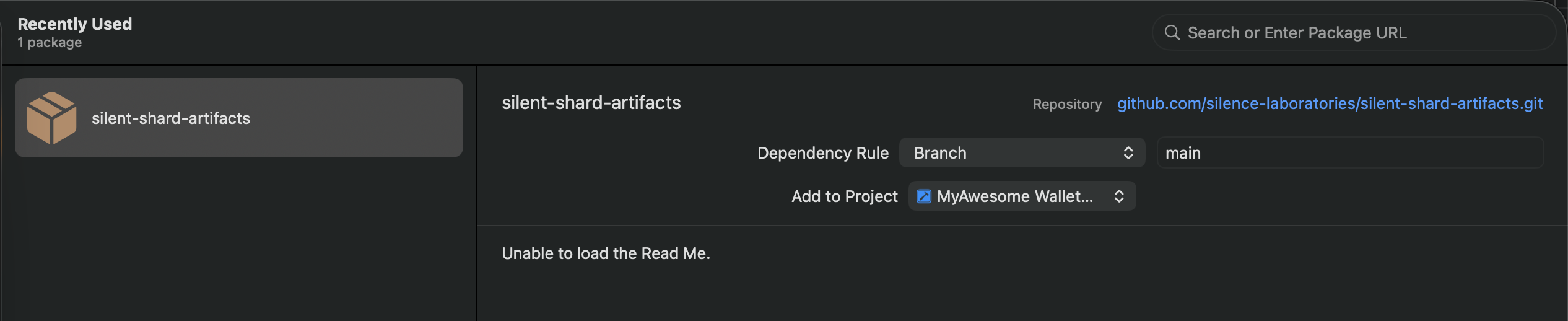
- Select
silentshard-artifactson the left panel. - Click Add Package to proceed.
Step 5: Confirm and add
- Xcode will fetch the package details.
- Add the library
duoinitiatorto your targets by clicking the dropdown from the Add to Target items.
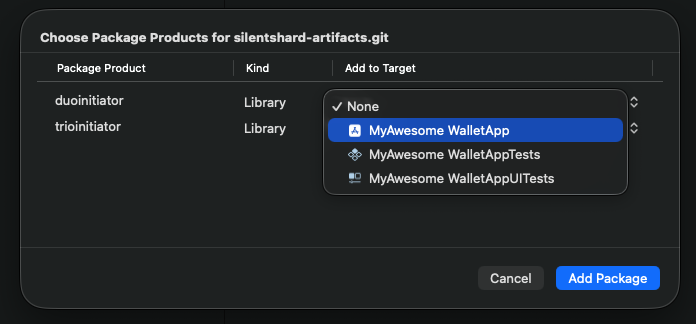
- Click Add Package to complete the installation.