Test with the mobile app
Our demo app connects to any deployment you point it at. Use it to confirm the whole chain works: authentication, the validation hooks, and a real distributed key generation.
This works out of the box only if you took option 1 and deployed with our predefined credentials. With your own Auth0 tenant, the demo app cannot authenticate against it, so you need your own build. See Run Your Own Backend.
Collect your values
tofu -chdir=deploy/gcp/tf/backend output
You need auth_svc_public_ip and duo_server_public_ip from these outputs, plus the verifying key
printed by generate-secrets-backend.sh during
backend setup. Copy the full key, including the
01 prefix. If you did not save it, run that script again; it preserves existing secrets and
prints the same key.
Install the app
Scan the QR code with an Android phone, or on an emulator install the APK from the download link. Android may ask you to trust the source.

Point the app at your deployment
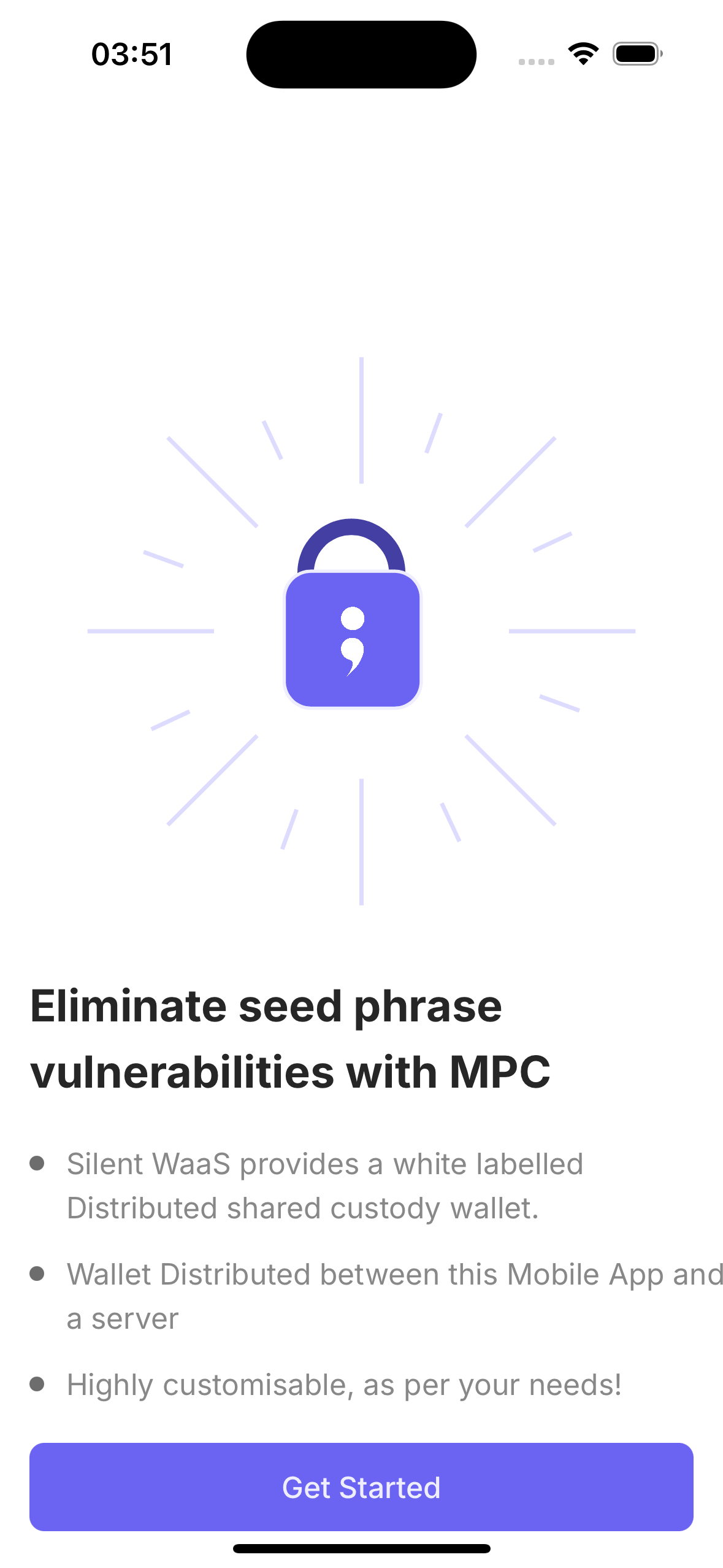
Open the app and tap Get Started.
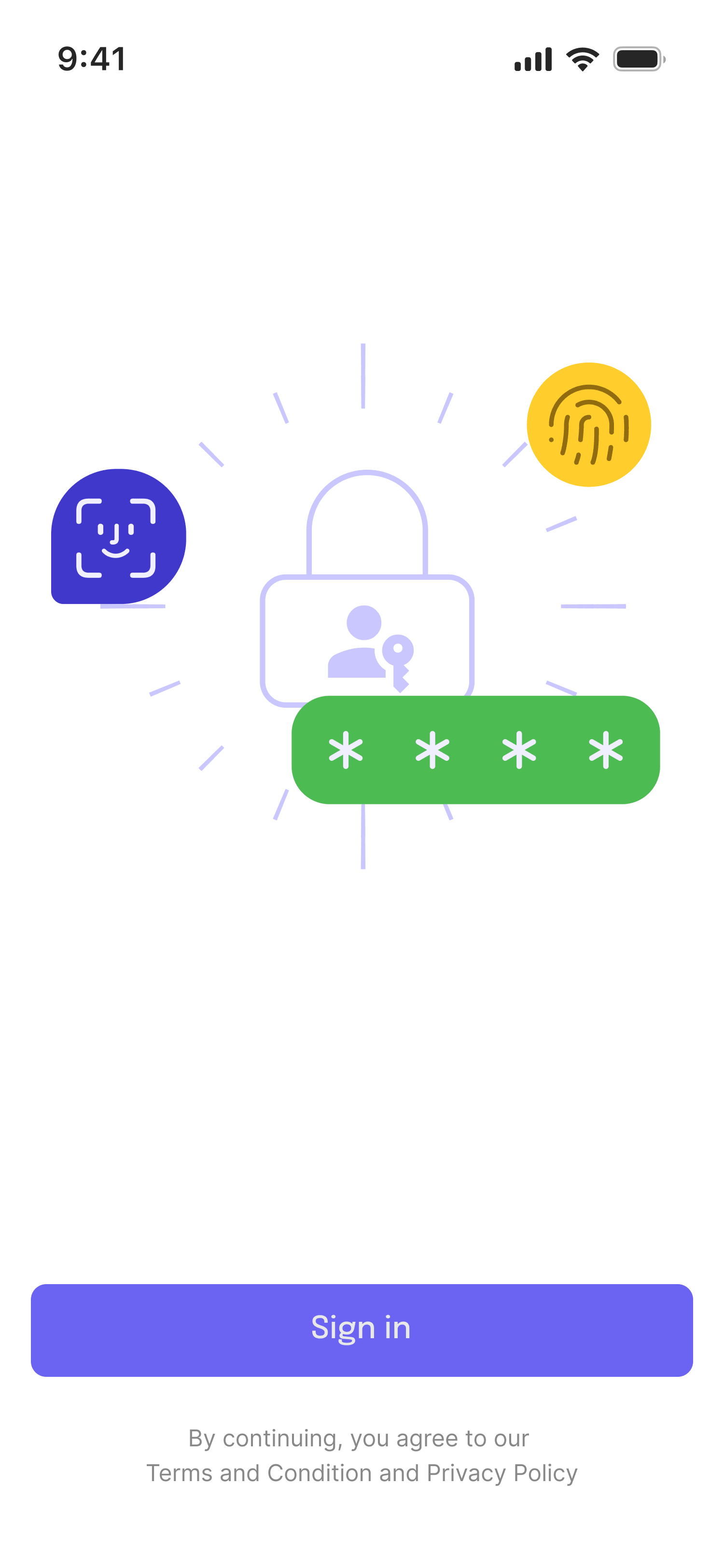
On the sign-in screen, tap the server icon in the top-right to open Server settings. Without this the app runs against our hosted Duo sandbox instead of your deployment.
Server settings offers three choices: Duo Demo, Trio Demo and Custom Backend. Pick Custom Backend and fill in:
| Field | Value |
|---|---|
| Backend URL | http://<auth_svc_public_ip>:9090 |
| Auth0 audience | Your auth0_audience from global.tfvars |
| Cloud node type | Duo |
| Cloud node URL | http://<duo_server_public_ip>:8080 |
| Verifying key | The verifying key from backend setup |
| Policy evaluation | On only if you enabled the policy engine |
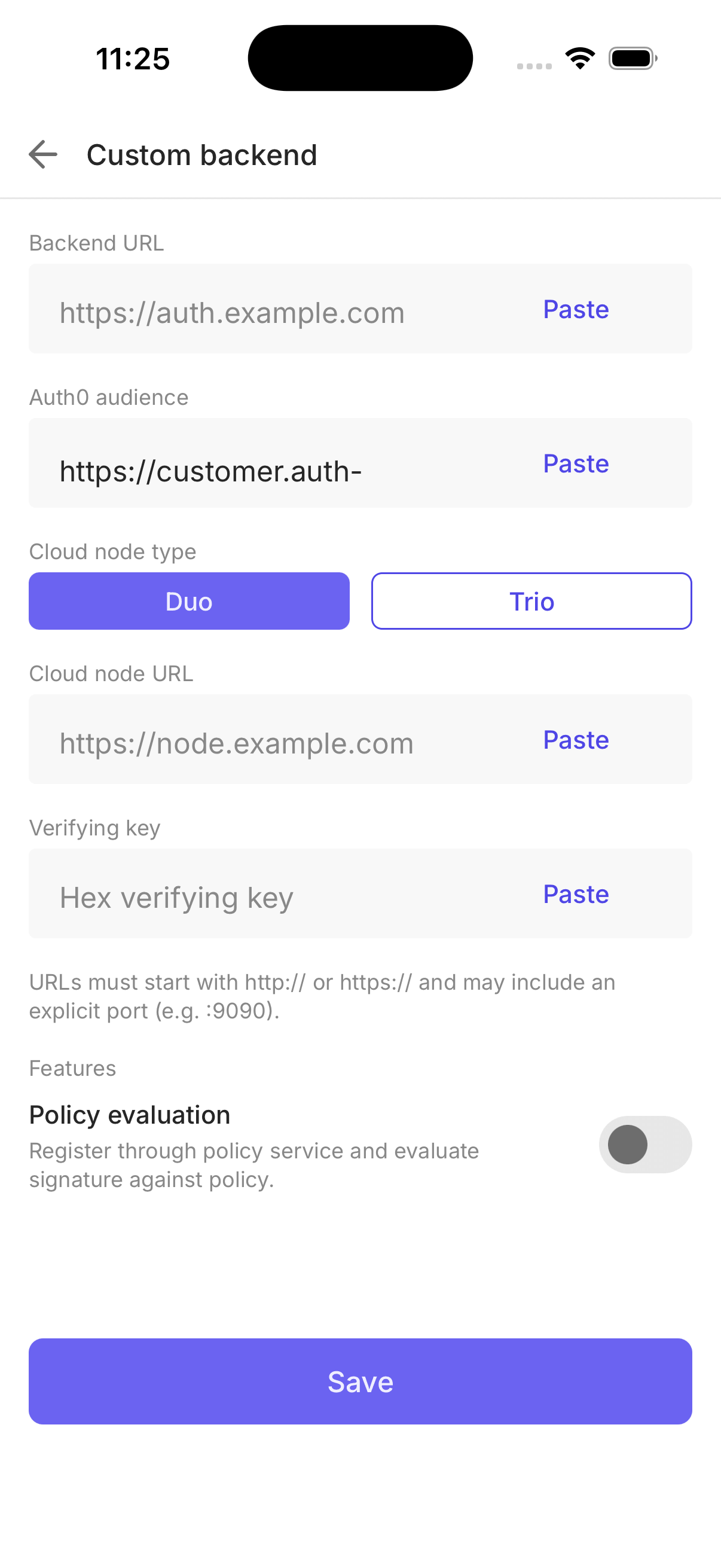
URLs must start with http:// or https:// and include the port. Both services are plain HTTP in
this tutorial. Tap Save. The app checks that both URLs are reachable before applying the
config.
Switching backends deletes the keys, wallet and account data stored on the device. The app asks for confirmation first.
A field-by-field description of the form lives in Run Your Own Backend.
Create a wallet
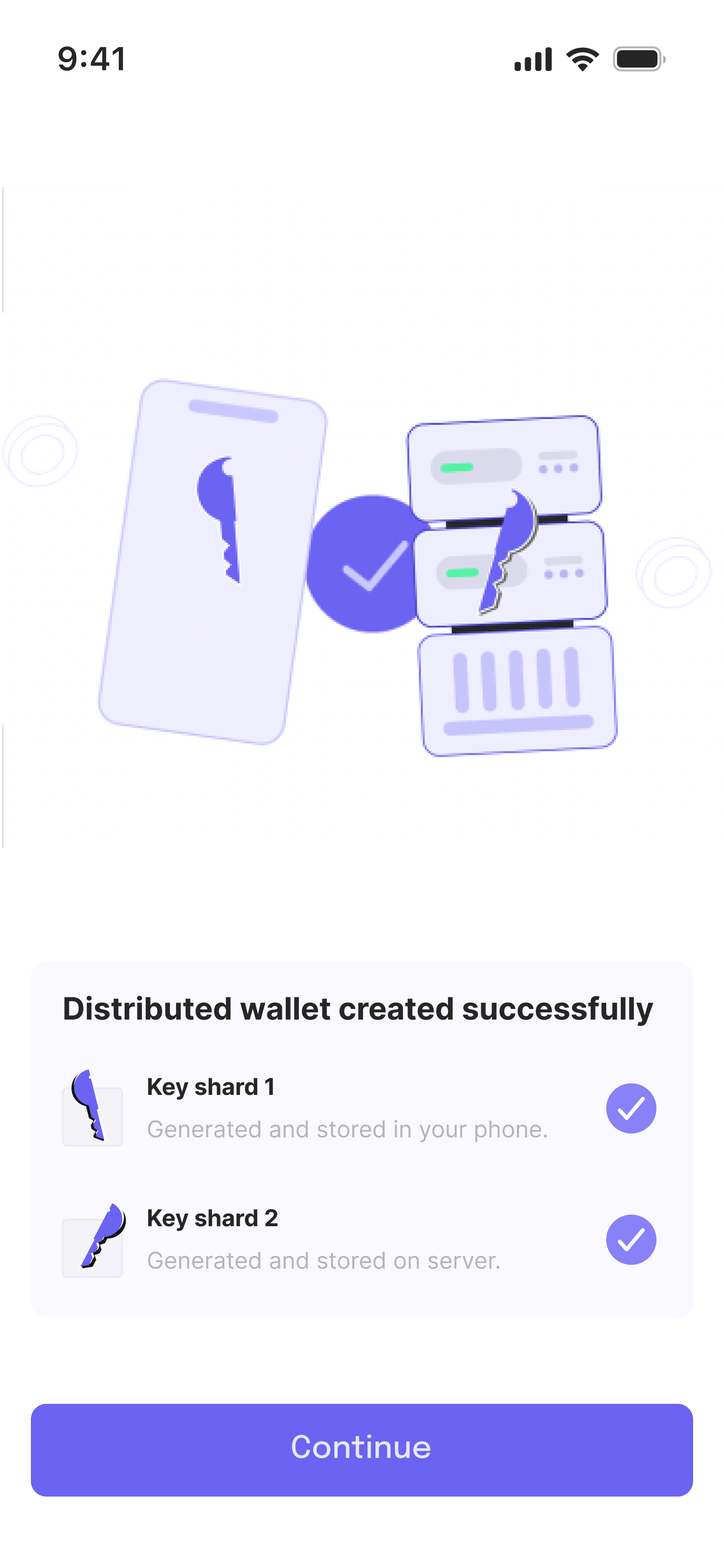
Sign in and create an account. The app and duo-server now run the MPC protocol and each end up
holding one share of a key that never exists in full.
Watch the logs while this happens. duo-server calls auth-svc's validation hook before starting
the session, and notifies it of the new key afterwards:
INFO hook dkg_setup_validation ... result=ok
INFO hook key_id_notification ... result=ok
That exchange is the proof the deployment is wired correctly: duo-server refuses to run a session
that auth-svc has not approved.
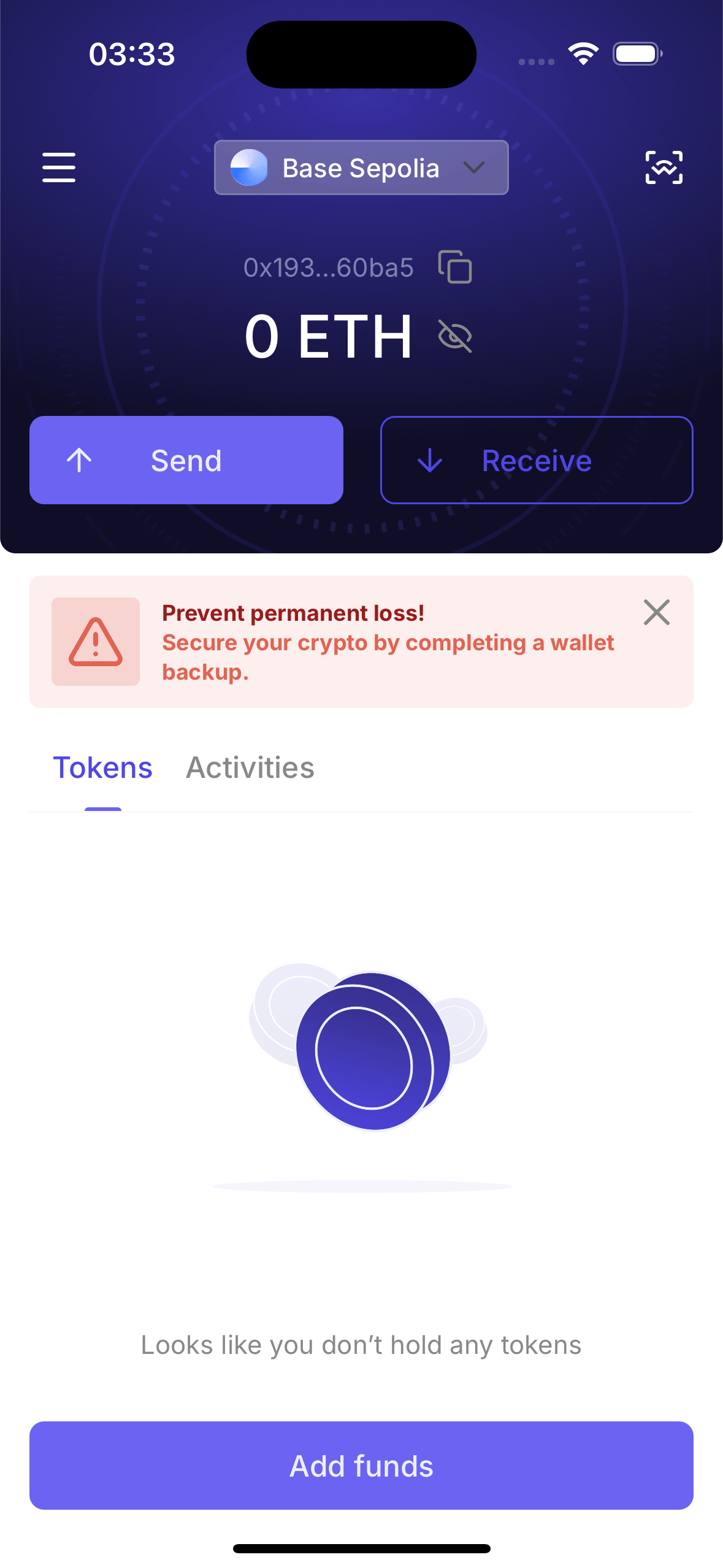
You now have a working {2, 2} MPC wallet running against your own infrastructure.
Next
- Enable the policy engine to enforce rules on signing
- Tear down the deployment when you are finished