FaceTec
Only needed when self-hosting. The Quick Start uses the sandbox device key already filled in .env.example.
FaceTec provides 3D liveness detection — a face scan that proves a real person is present, not a photo or a video. The boilerplate uses it to secure the keyshare backup and recovery flows.
What FaceTec does in this app
| Purpose | When it runs | What it does |
|---|---|---|
| Enroll | During backup setup | Registers the user's face with the backend's FaceTec server |
| Match | During recovery | Verifies the face scan matches the enrolled face |
A successful match produces a face_session_id. The app passes it to auth-svc as proof of identity when registering a new device and recovering keyshares. Each successful match session can be used once.
Server-driven sessions
The app holds exactly one FaceTec value — the device key identifier:
EXPO_PUBLIC_FACETEC_DEVICE_KEY_IDENTIFIER=...
Face scans need real camera hardware. On simulators and emulators the app shows a "Physical device required" screen instead.
Get your own device key
- Sign in or create a developer account at dev.facetec.com.
- Open Account Info & Encryption Keys and create an app. Copy its Device Key Identifier.
- Set it as
EXPO_PUBLIC_FACETEC_DEVICE_KEY_IDENTIFIERin the app's.env. - Set the same value as
FACETEC_DEVICE_KEYin yourauth-svc.
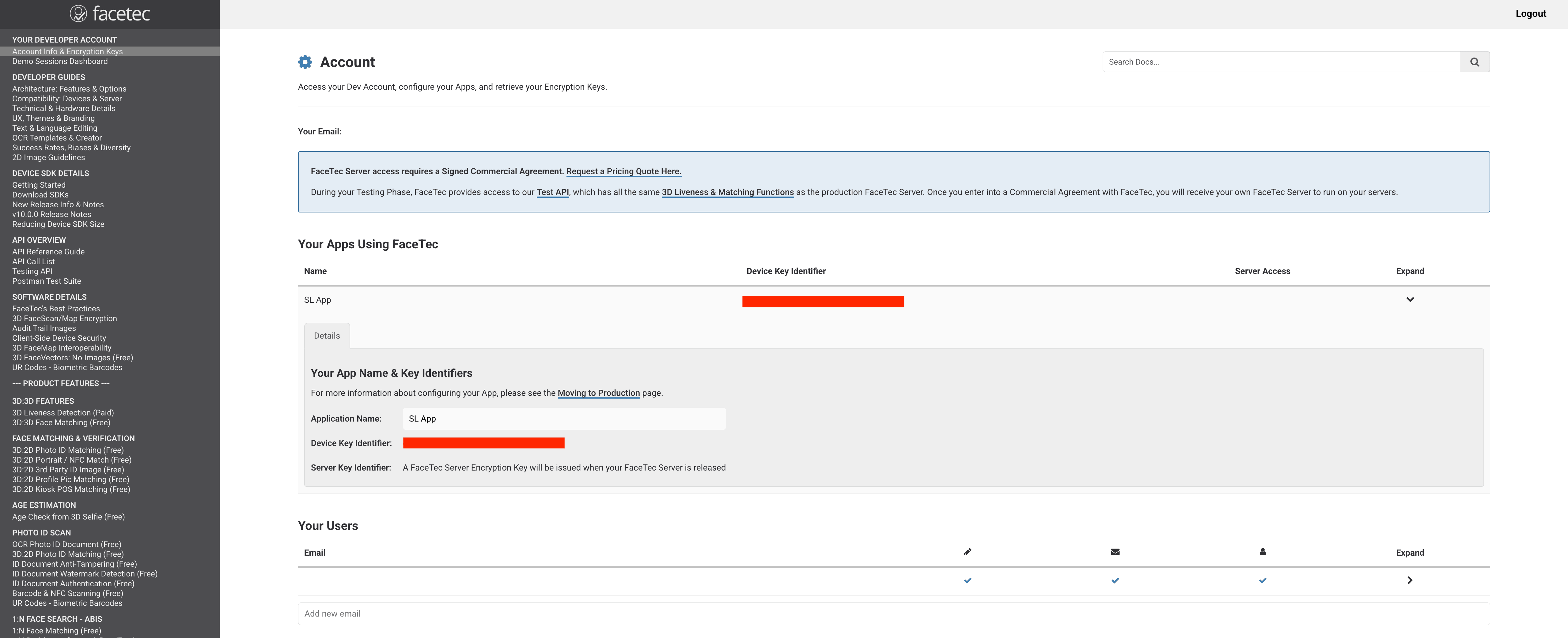
During your testing phase, auth-svc can point at FaceTec's hosted Test API. Production use requires a commercial agreement with FaceTec, which gives you your own FaceTec Server to run.
The device key identifier in the app must match FACETEC_DEVICE_KEY in your auth-svc, or backup and recovery will fail. See Run Your Own Backend.