Google Sign-In + Drive
Only needed when self-hosting. The sandbox uses pre-filled demo Google credentials — see the Quick Start.
Google is used for two things: signing in with a Google account, and storing the backup encryption key in Google Drive.
Part 1: Google Sign-In
1.1 Create a Google Cloud project
- Go to the Google Cloud Console.
- Create a new project (or select an existing one).
- Open the Google Auth Platform (search for it, or go to APIs & Services → OAuth consent screen). If it hasn't been set up yet, click Get started.
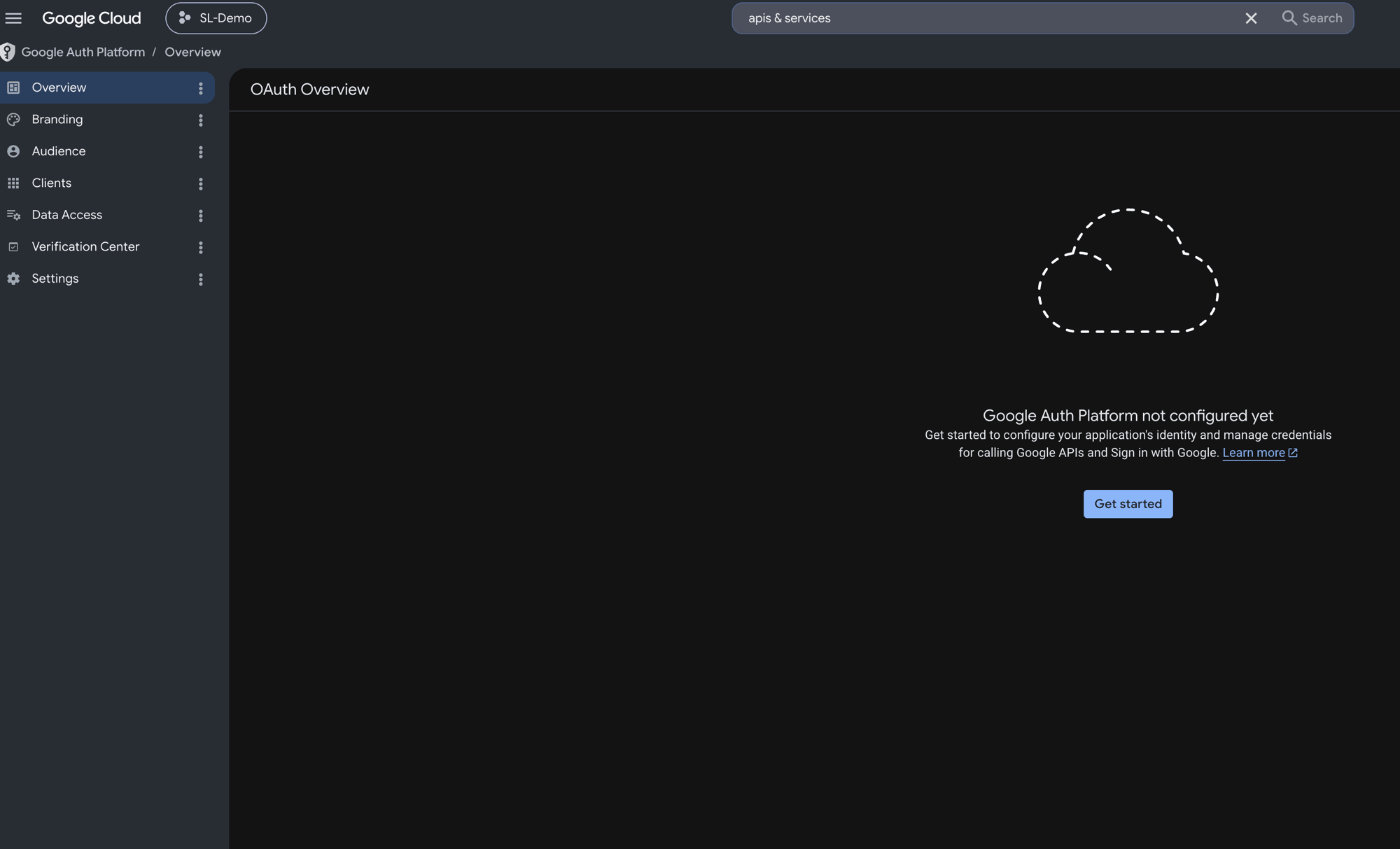
- Work through the setup steps:
- App information — set the app name and user support email.
- Audience — select External.
- Contact information — add your email address and click Save and continue.
- Finish — click Continue to finalize the OAuth consent screen setup.
1.2 Create OAuth 2.0 credentials
You need two credential sets: one for web (used by Auth0 and as a reference) and one for iOS.
Web client (used for Google Drive access token requests):
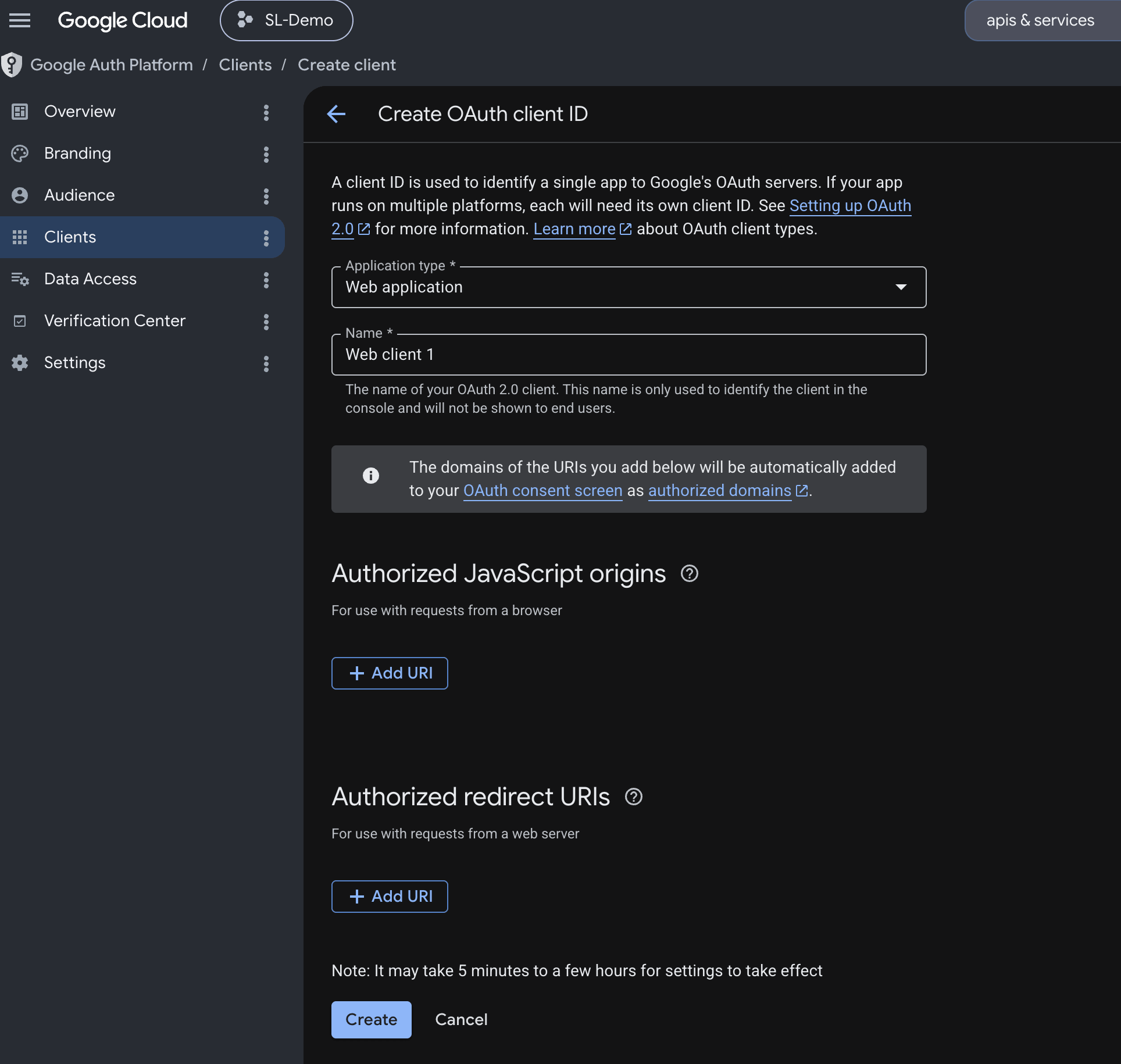
- Go to APIs & Services → Credentials → Create Credentials → OAuth 2.0 Client ID.
- Choose Web application.
- Note the Client ID — this is
EXPO_PUBLIC_WEB_CLIENT_ID.
iOS client:
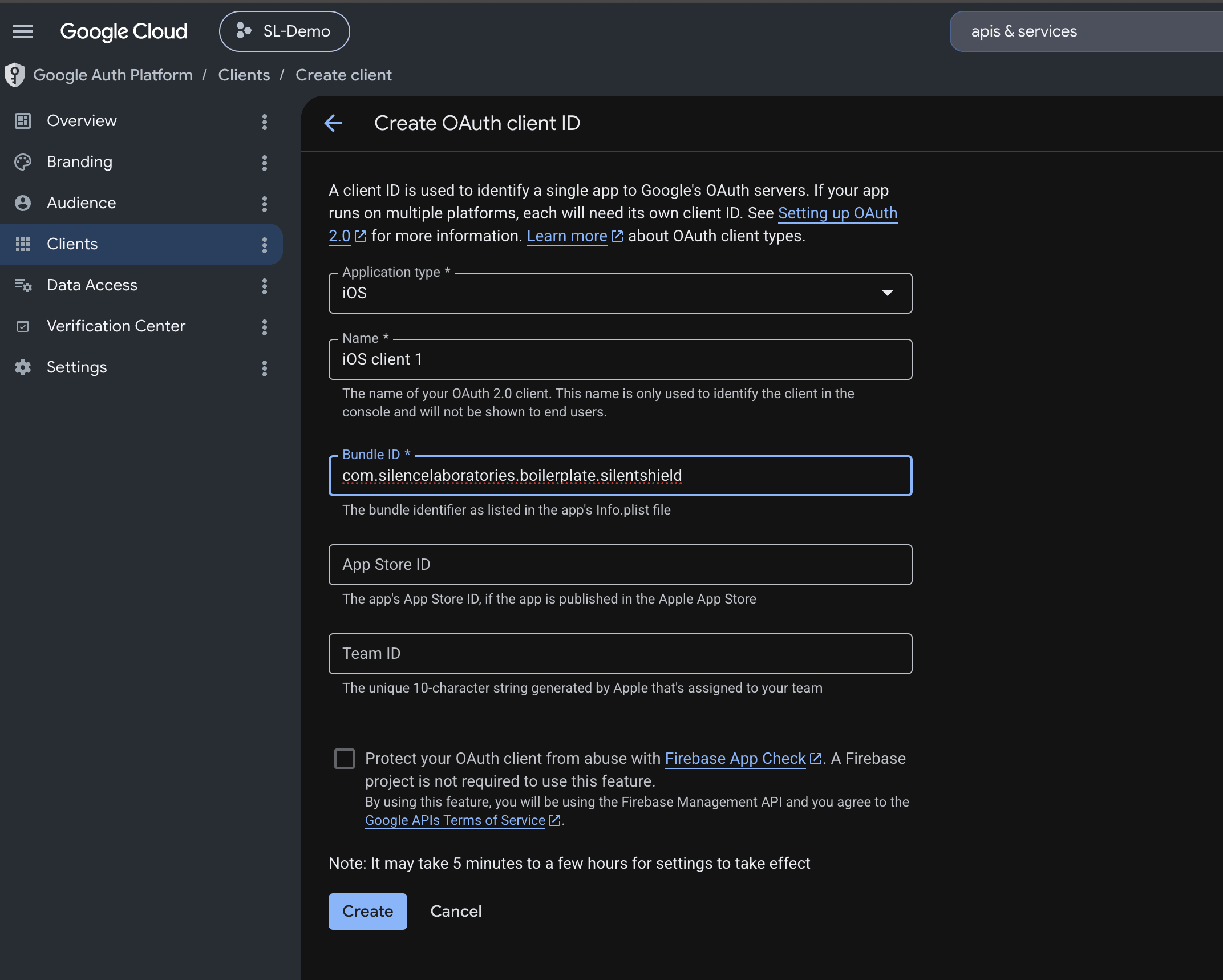
- Create another OAuth 2.0 Client ID.
- Choose iOS.
- Enter your app's bundle identifier (
com.silencelaboratories.boilerplate.silentshield, or your own fromapp.config.ts). - Note the Client ID — this is
EXPO_PUBLIC_IOS_CLIENT_ID.
1.3 Add values to .env
EXPO_PUBLIC_WEB_CLIENT_ID=your_web_client_id.apps.googleusercontent.com
EXPO_PUBLIC_IOS_CLIENT_ID=your_ios_client_id.apps.googleusercontent.com
EXPO_PUBLIC_IOS_URL_SCHEME=com.googleusercontent.apps.your_ios_client_id
Part 2: Google Drive API
The boilerplate saves the backup encryption key as a file in the user's Google Drive. During backup, the app requests a Drive access token using the Google Sign-In SDK.
2.1 Enable the Google Drive API
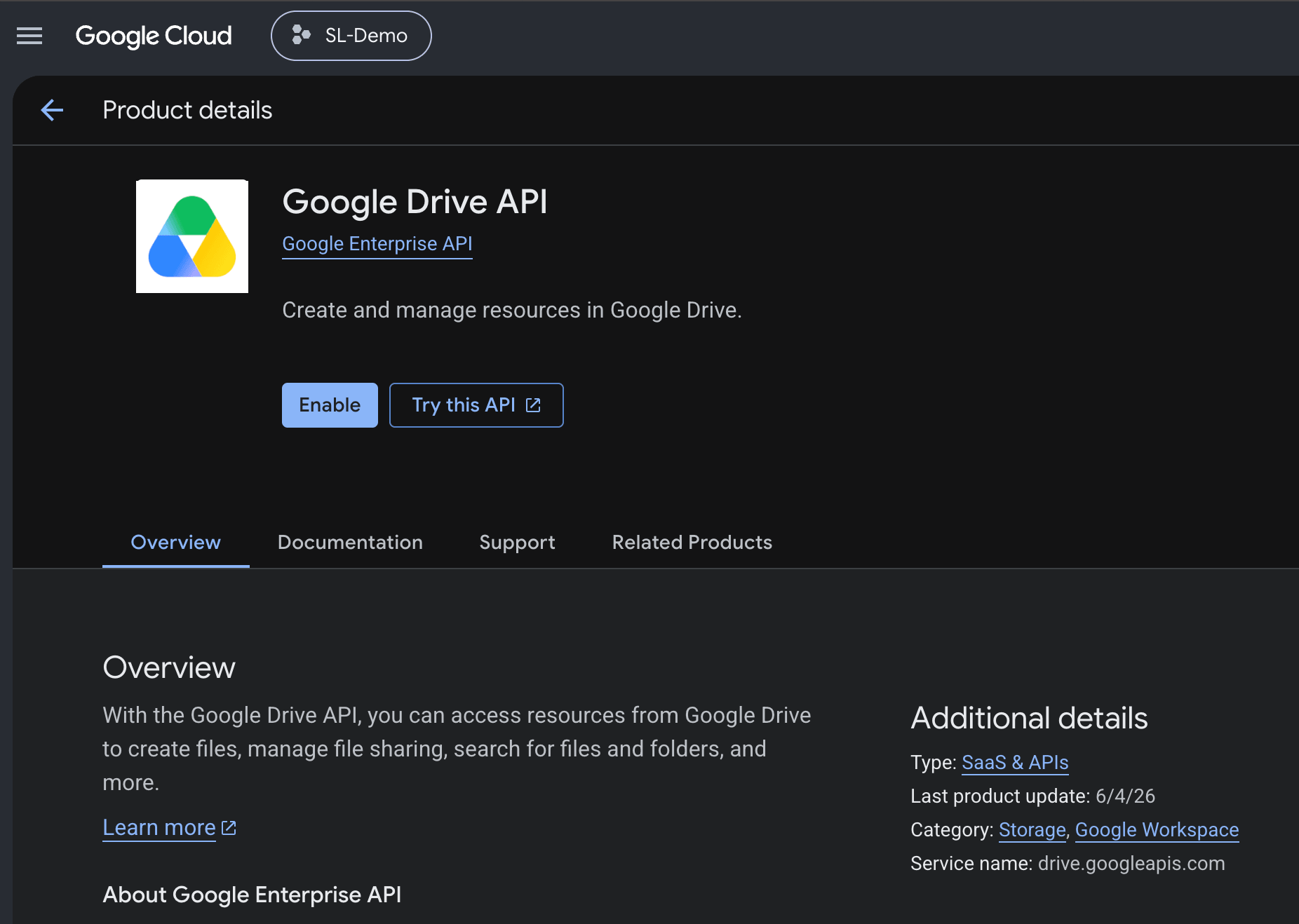
- In the same Google Cloud project, go to APIs & Services → Library.
- Search for Google Drive API and click Enable.
2.2 Add the Drive scope
The app requests the https://www.googleapis.com/auth/drive scope when the user initiates a backup. No additional configuration is required — the scope is requested at runtime.
The Drive access token is requested on-demand during the backup flow using requestGoogleDriveAccessToken(). Users will see a Google consent screen asking for Drive access the first time they back up.